LogCat didn't seem to show anything, but here's what I've found:
1) The program isn't actually crashing, but it is taking over a minute (1 minute, 23 seconds) to display anything other than a white screen, and if you touch the screen during this time, you get a message saying that the app isn't responding, with the choices of closing the app or waiting.
2) The problem seems to be right at the beginning of the code (in the preprocessor area). What comes after the preprocessor lines doesn't matter other than to give an example of how slow the app is running.
3) This problem only shows up with the compiled version of the code. When running the same code as an Android applet through the player, it works perfectly well.
Here is the code I'm working with:
Code: Select all
@REQUIRE "RapaGUI", {ScaleHollywood = False}
@REQUIRE "polybios"
@REQUIRE "hurl"
@INCLUDE "Questions"
@INCLUDE "Answers"
@INCLUDE "Passages"
@INCLUDE "Enchiridion"
@INCLUDE "PageButtonTable"
@INCLUDE "Instructions"
@INCLUDE "TableOfContents"
@INCLUDE "CatNotes"
@INCLUDE "GUIs.xml"
@INCLUDE "SupportFunctions.hws"
@FONT 1, "Times New Roman", 64
@FONT 2, "Times New Roman Italic", 64
@FONT 3, "Times New Roman Bold", 64
@FONT 4, "Times New Roman", 50
@FONT 5, "Times New Roman Italic", 50
@FONT 6, "Times New Roman Bold", 50
@FONT 7, "Times New Roman", 256, {Engine=#FONTENGINE_INBUILT}
@BGPIC 2, "HighlightBG.jpg"
@FILE 1, "Catechism.pdf"
@FILE 2, "NotesOverlay.pdf"
@FILE 3, "BlankPageNotes.pdf"
@OPTIONS {EnableDebug=True}
@IF #HW_AMIGA
	@DISPLAY {Title="Catechism", Color=#WHITE, Layers=True, Width=1214, Height=1844, ScaleMode=#SCALEMODE_LAYER, SmoothScale=True, FitScale=True, KeepProportions=True, Hidden=False}
@ELSEIF #HW_WINDOWS
	@DISPLAY {Title="Catechism", Color=#WHITE, Layers=True, Width=1214, Height=1844, ScaleMode=#SCALEMODE_LAYER, SmoothScale=True, FitScale=True, KeepProportions=True, Hidden=False}
	@APPICON {Ic16x16="Icons/16", Ic24x24="Icons/24", Ic32x32="Icons/32", Ic48x48="Icons/48", Ic128x128="Icons/128", Ic256x256="Icons/256", Ic512x512="Icons/512"}
@ELSEIF #HW_ANDROID
	@DISPLAY {Title="Catechism", Color=#WHITE, Layers=True, Width=1214, Height=1844, ScaleMode=#SCALEMODE_LAYER, SmoothScale=True, Hidden=True, SingleMenu=True}
@ELSE
	@DISPLAY {Title="Catechism", Color=#WHITE, Layers=True, Width=1214, Height=1844, ScaleMode=#SCALEMODE_LAYER, SmoothScale=True, Hidden=True, SingleMenu=True}
@ENDIF
@APPVERSION "1.06"

StartTimer(1)
Time$="0"

CreateDisplay(2, {Color=#WHITE})
OpenDisplay(2)

EnableLayers()

SetDisplayAttributes({Width=GetAttribute(#DISPLAY, 1, #ATTRMAXWIDTH), Height=GetAttribute(#DISPLAY, 1, #ATTRMAXHEIGHT)})

UseFont(1)
SetFontStyle(#NORMAL)
SetFontStyle(#ANTIALIAS)
SetFontColor($0)

TextOut(0, 0, "TextOut() can do automatic word-wrapping for you if you specify this additional parameter. You can use this parameter to specify a maximum width for your text. TextOut() will then use word wrapping to make sure that no text runs beyond this limit. If you do not set this argument or set it to 0 (which is also the default), the text will be as wide as it is required. Starting with Hollywood 9.1, you can also use soft hyphens or zero-width space characters to customize word wrapping but since these are Unicode characters, you need to make sure that you use UTF-8 encoding in that case.", {WordWrap=GetAttribute(#DISPLAY, 1, #ATTRMAXWIDTH), Name="Text1"})

Time$=Time$.."; "..GetTimer(1)

TextOut(0, GetAttribute(#LAYER, "Text1", #ATTRHEIGHT), "Starting with Hollywood 2.5, you can use format tags in the string you pass to TextOut(). Using these tags you can control the font style and color of your text on-the-fly. Format tags always start and end with a square bracket (\"[[\"). In case you just want to print a square bracket, you will have to use two square brackets. If there is only one square bracket Hollywood will always expect a format tag unless you disable format tags by calling the UseFormatTags() function or by setting the UseFormatTags tag to False (see below). See Section 61.32 [[Format tags]], page 1229, for details.\nIn Hollywood 4.0 the syntax of this function changed slightly. While the old syntax is still supported for compatibility, new scripts should use the new syntax which accepts a table as argument 4.", {WordWrap=GetAttribute(#DISPLAY, 1, #ATTRMAXWIDTH), Name="Text2"})

Time$=Time$.."; "..GetTimer(1)

TextOut(0, GetAttribute(#LAYER, "Text1", #ATTRHEIGHT)+GetAttribute(#LAYER, "Text2", #ATTRHEIGHT), "Set this tag to True to put TextOut() into list mode. List mode allows you to create ordered and unordered lists with TextOut(). When in list mode, you need to use tabs in the string you pass to TextOut() to signal the desired level of indentation. By default, all list items will use the bullet specified in DefListBullet. It is also possible to tell TextOut() to use custom bullets by setting the ListBullet tag. The same is true for the list's indentation, offset and spacing where the default values can be set using DefListIndent, DefListOffset and DefListSpacing and custom values can be set using ListIndent, ListOffset and ListSpacing. Please see below for more details on all these options. Also note that ListMode and Tabs are mutually exclusive. You cannot use both at the same time. (V9.0)", {WordWrap=GetAttribute(#DISPLAY, 1, #ATTRMAXWIDTH), Name="Text3"})

Time$=Time$.."; "..GetTimer(1)

SystemRequest("Times", Time$, "OK")

End()
The following screenshot is from the compiled app:
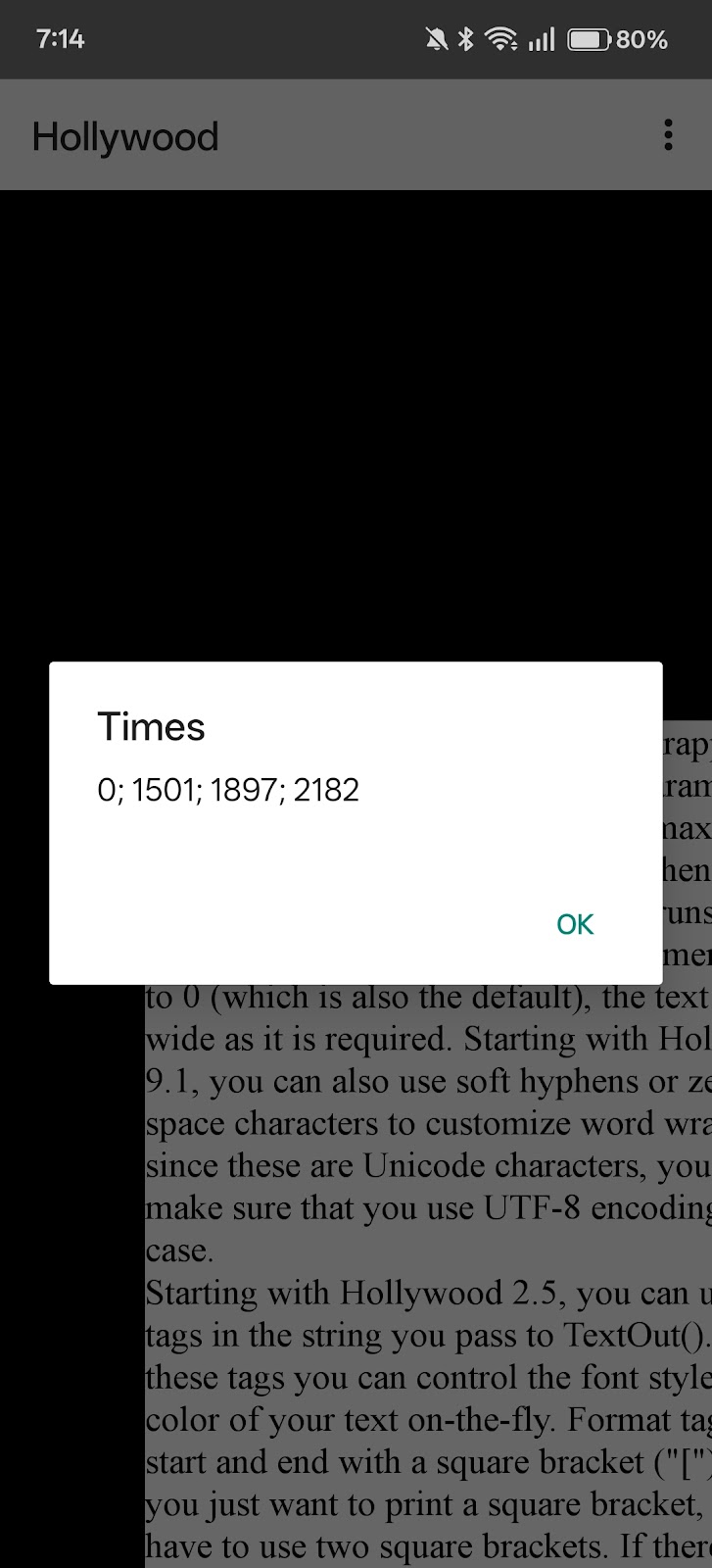
Again, it takes 1 minute, 23 seconds for the timer even to begin. Then, after it starts, the text takes much longer to display than it should.
For comparison, this is the screenshot from when the same code is run in applet form through the Android player:
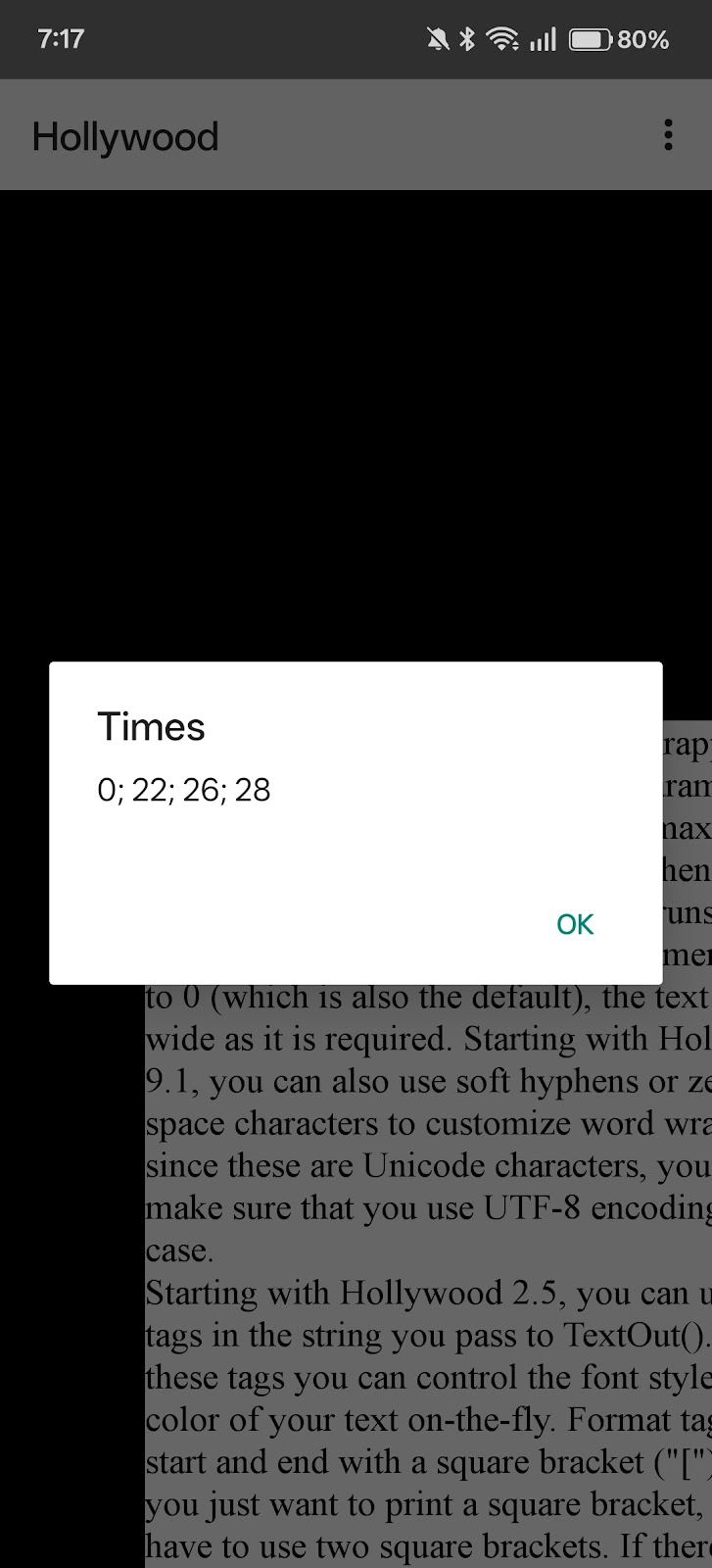
Through the player, the app starts immediately (no delay at all).
I've also tried it with fewer preprocessor commands, and there is still a slowdown, but not as dramatic as with the full set.
